In today’s modern digital era, only those companies can grow that focus not just on better work but also on better speed. That’s why many companies use automation tools to increase their productivity.
As different countries have different time zones, it becomes crucial for businesses to understand the local time format of each region, especially when scheduling global meetings or managing deliveries and orders. Microsoft’s Power Automate tool proves to be very helpful in preventing such time-travel-related issues.
This guide walks you through using the Power Automate formatDateTime function with clear syntax and practical examples. This will help you understand date and time formatting and manage your business tasks smoothly. Everything you need to know is covered in detail, from basic functions, their syntax, and parameters, to advanced techniques.
Understanding FormateDateTime in Power Automate
Automating tasks often requires working with dates and times. Whether you’re sending reminders, naming files, or generating reports, how the date appears can make a big difference. Power Automate comes with a built-in formatDateTime() function to help in controlling the display of date and time values in your workflows.
With this function, you can convert raw timestamps into readable, properly formatted strings that match your needs—ensuring clarity and consistency across all your automated processes.
What is formatDateTime function?
The formatDateTime() function in Power Automate is used to convert a date and time value (known as a timestamp) into a customized string format. This allows users to present date and time values in a way that best suits their workflow or audience.
Syntax
The syntax is straightforward:
formatDateTime(timestamp, format)
Power Automate formatdatetime function contains two main parameters. The first parameter is a timestamp, and the second is a format string that defines how the date and time should be returned as text.
- Timestamp: The timestamp refers to the actual date and time value you want to format. You can enter it manually, for example ‘2023-07-19T14:56:02Z’, or use dynamic functions like utcNow() to get the current date and time in Coordinated Universal Time (UTC). It’s important to note that timestamps should follow the ISO 8601 format (yyyy-MM-ddTHH:mm:ssZ) for accurate results.
- Format strings: The format argument defines how the timestamp will be displayed. It can be a standard format string using a single character or a custom format string composed of multiple elements (like dd-MM-yyyy). These format codes are based on .NET date and time formatting rules and provide extensive flexibility to match regional, business, or personal preferences.
Standard format strings
Standard format strings are shorthand codes made up of a single letter (like d, g, or D) that represent common date and time formats. These are simple to use and useful when you want consistent, predefined formatting.
Examples:
formatDateTime(‘2025-03-20T14:30:30’, ‘g’)
👉 Returns: 3/20/2025 2:30 PM (General date/time pattern – short time)
formatDateTime(‘2025-03-20T14:30:30’, ‘D’)
👉 Returns: Thursday, March 20, 2025 (Long date pattern)
Custom format strings
Custom format strings give you full control over how each part of the date and time is presented. You can specify the exact layout using a combination of format specifiers like yyyy for year, MM for month, dd for day, and so on.
Examples:
formatDateTime(‘2025-03-20T14:30:30’, ‘M/dd/yyyy h:mm tt’)
👉 Returns: 3/20/2025 2:30 PM (Custom format similar to standard g)
formatDateTime(‘2009-06-15T13:45:30’, ‘M/dd/yyyy HH:mm:ss tt’)
👉 Returns: 3/20/2025 14:30:30 PM (24-hour format)
formatDateTime(‘2025-03-20T14:30:30’, ‘yyyy/MM/dd hh:mm:ss tt’)
👉 Returns: 2025/03/20 2:30:30 PM (12-hour format with full date)
formatDateTime(utcNow(), ‘MMMM dd, yyyy, HH:mm’)
👉 Returns: March 20, 2025, 14:30 (current UTC time with full month name)
formatDateTime(utcNow(), ‘dd-MM-yyyy’)
👉 Returns: 20-03-2025 (just the current date)
Common Uses for FormatDateTime
The formatDateTime() function is one of the most practical tools in Power Automate when it comes to handling date and time values. Its primary role is to make time-related data more understandable, uniform, and useful across different parts of an automated process. Whether you’re building workflows for business reports, task reminders, or system logs, this function brings clarity and control to your automation.
Here are some of the most common and effective ways users apply formatDateTime() in real-world Power Automate flows:
1. Formatting Dates for User-Friendly Display
Raw date values in ISO format (e.g., 2025-04-18T15:45:30Z) aren’t always easy for end-users to read. With formatDateTime(), you can convert these values into more readable formats like April 18, 2025 or 18-04-2025. Readable date formats improve user experience and eliminate confusion in both internal and client-facing communications. This is especially useful for:
- Customizing email or Teams message content
- Naming files or folders with specific date stamps
- Showing task deadlines or scheduled dates within workflow automation
2. Ensuring Consistent Date Formats Across Systems
When data is passed between different systems—like SharePoint, Excel, SQL databases, or external APIs—format inconsistencies can cause errors or misinterpretation. This consistency is especially important in multi-step workflows where accuracy and data integrity matter. Use the formatDateTime() function to convert date and time values into a uniform format that fits your automation needs.
- Dates match regional or organizational preferences
- External systems receive properly formatted data
- Automation logic functions correctly with the expected input formats
3. Adjusting and Displaying Time Zones
In international workflows, it’s important to present date and time values according to the relevant time zone. Although formatDateTime() itself doesn’t convert time zones, it works seamlessly with other datetime functions like convertTimeZone() to format the final output. Combining time zone conversion with clear formatting ensures that your automation communicates clearly, no matter where your users are located. This is commonly used for:
- Sending notifications in the recipient’s local time
- Logging events with accurate time zone context
- Scheduling actions based on regional business hours
4. Automating Reports and Logs
Automated reports, logs, and audit trails often rely on precise timestamps. With formatDateTime(), you can insert current or past date-time values into records in a format that’s both human-readable and aligned with your documentation standards.
Examples include:
- Timestamping when a record was created or updated
- Adding dates to filenames (e.g., Report_2025-04-18.pdf)
- Logging flow runs with formatted start or end times
How to use Power Automate formatDateTime function
Now that we’ve covered the basics of the formatDateTime function, it’s time to put it into action. This section will guide you step-by-step on how to use this function within Power Automate to format the current date and time exactly the way you need.
Let’s look at how this works in practice by adding the date to an email template. By the end, you’ll be confident in applying this function to your own workflows for a variety of use cases.
Enjoying this? Get more insights in my related articles below:
Step-by-Step Guide to Using formatDateTime in Power Automate
To demonstrate, we’ll use the Send an email (V2) action in Power Automate. We’ll use the utcNow() function to automatically fetch the current date and time in UTC format.
Step 1: Open Power Automate and Create a New Flow
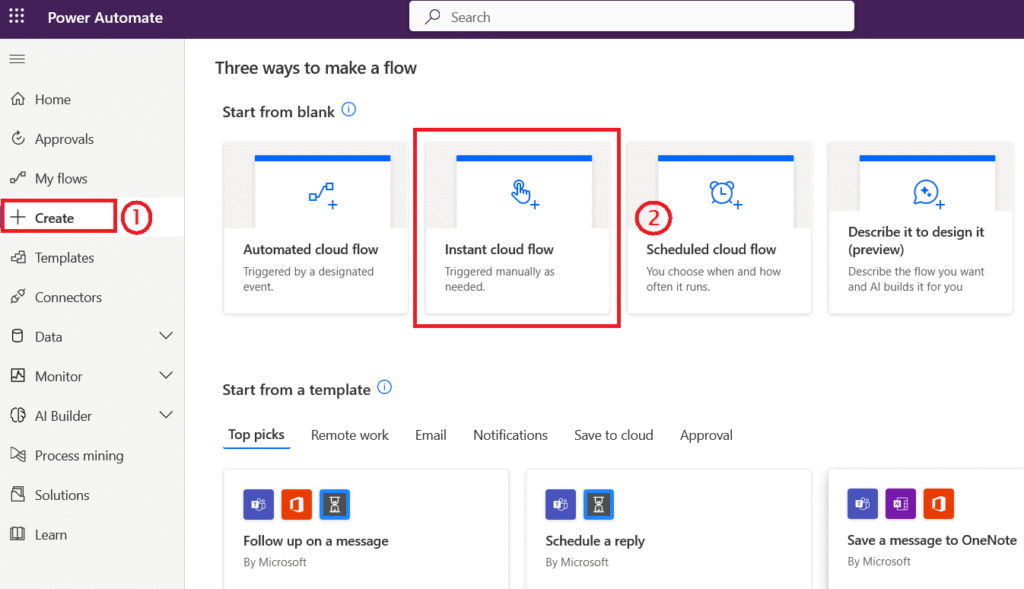
Go to make.powerautomate.com, sign in, and from the dashboard, create a new manually triggered cloud flow. This will be our test flow for experimenting with the formatDateTime function.
Step 2: Add an Email Action to the Flow
Once the manual trigger is in place, add the Send an email (V2) action.
You can find this by searching for “Send an email” in the list of available actions.
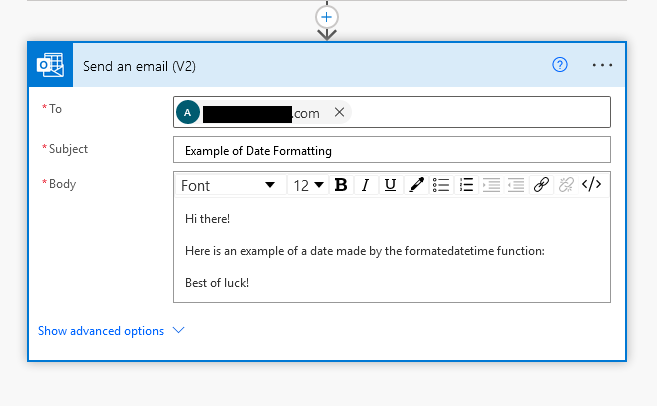
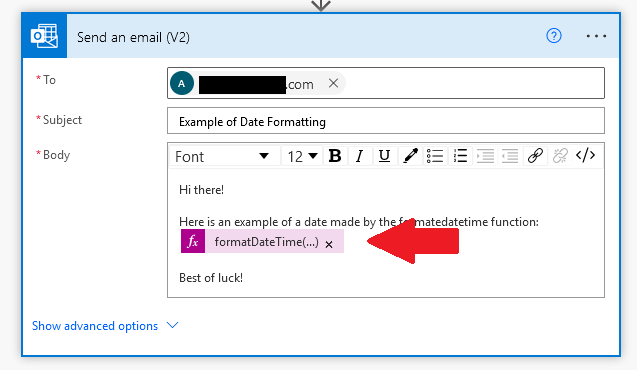
Fill out the required email fields — To, Subject, and Body — with placeholder values. We’ll focus on using the formatDateTime function in the body of the message.
Step 3: Insert the formatDateTime Expression
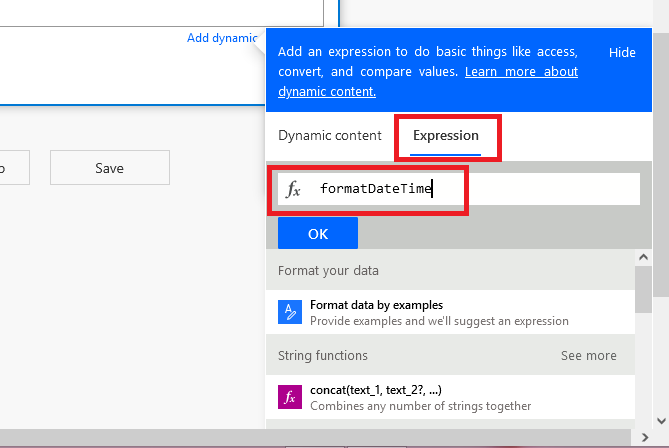
Within the email Body, select the ‘Add dynamic content’ option to insert variable data. From the pop-up panel, switch to the Expression tab. In the expression field, type “formatDateTime(utcNow(), ‘dd-MM-yyyy’)”. First, utcNow() grabs the current UTC timestamp, then the ‘dd-MM-yyyy’ format string presents it in Day-Month-Year order. Make sure your function is correctly typed — capitalization matters.
Step 4: Add the Expression to the Action
After entering the expression, click the OK button. As an output, it will display your formatted date within the email body content.
You can also mix the expression with text in the body. For example:
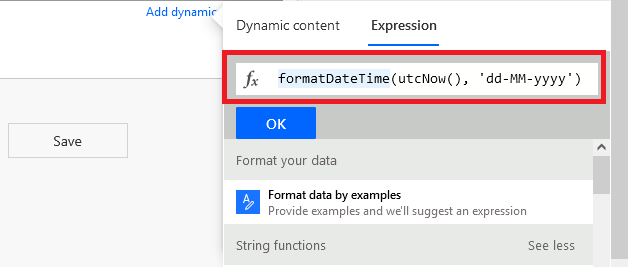
This dynamic expression will generate and display the formatted date when the email is sent.
Step 5: Save and Test the Flow
Save your flow and click Test to run it manually. If everything is set up correctly, the flow will execute and send an email with the current date in your desired format.
Step 6: View the Output
Check your email inbox for the message. You should see the formatted date clearly displayed, like this:
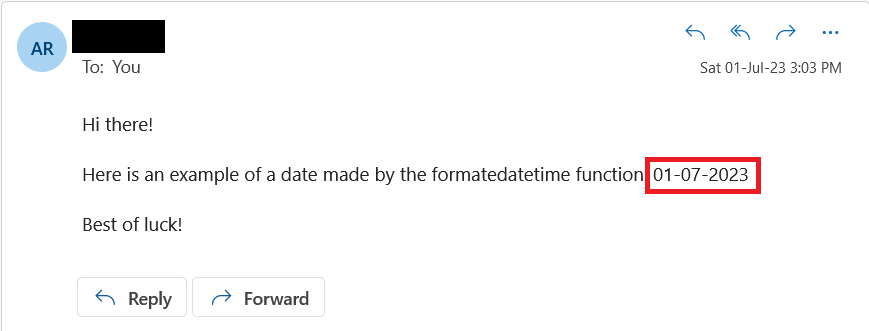
The formatDateTime function successfully transformed the raw UTC date into a clean, user-friendly format.
Formatting date & time in Power Automate
Working with dates and times is a common requirement in automation flows. Whether you need to display the current date in an email or log a specific time for reporting, Power Automate provides the formatDateTime function to help you customize how date and time values appear.
Here’s a step-by-step guide on how to format dates and times using this function inside Power Automate.
Step 1: Launch Power Automate
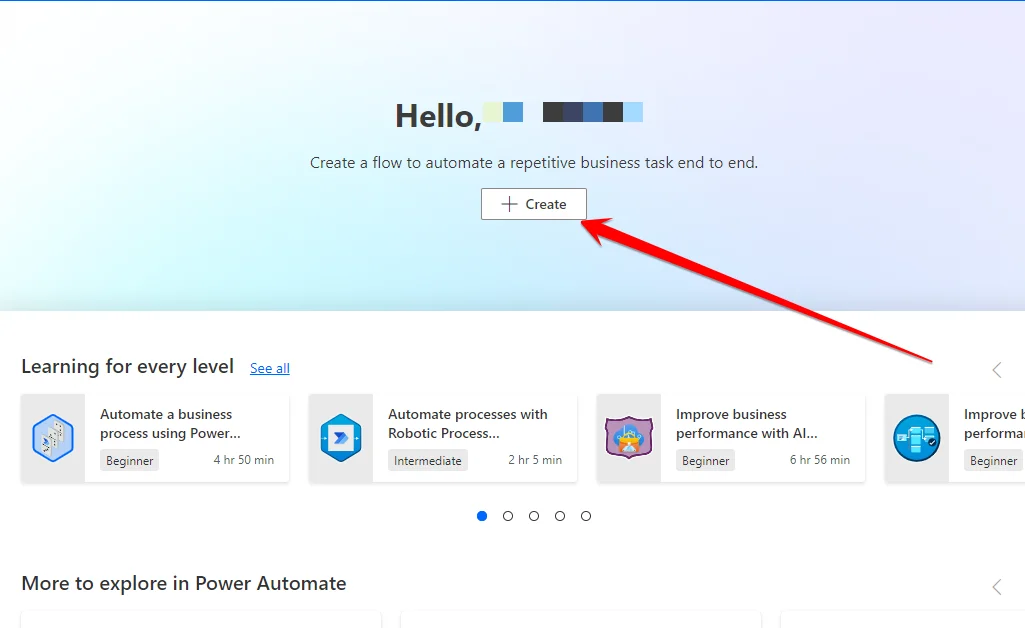
Start by navigating to flow.microsoft.com and signing in to your Power Automate account. Then go to the ‘My flows’ section to modify an existing flow or click the ‘Create’ button from the left-hand menu to create a new flow.
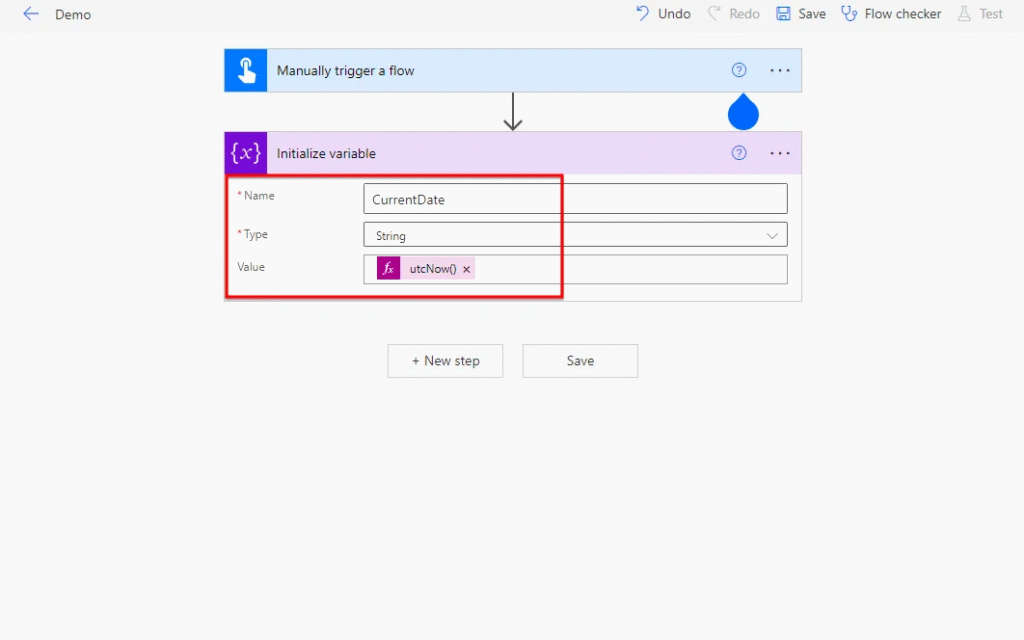
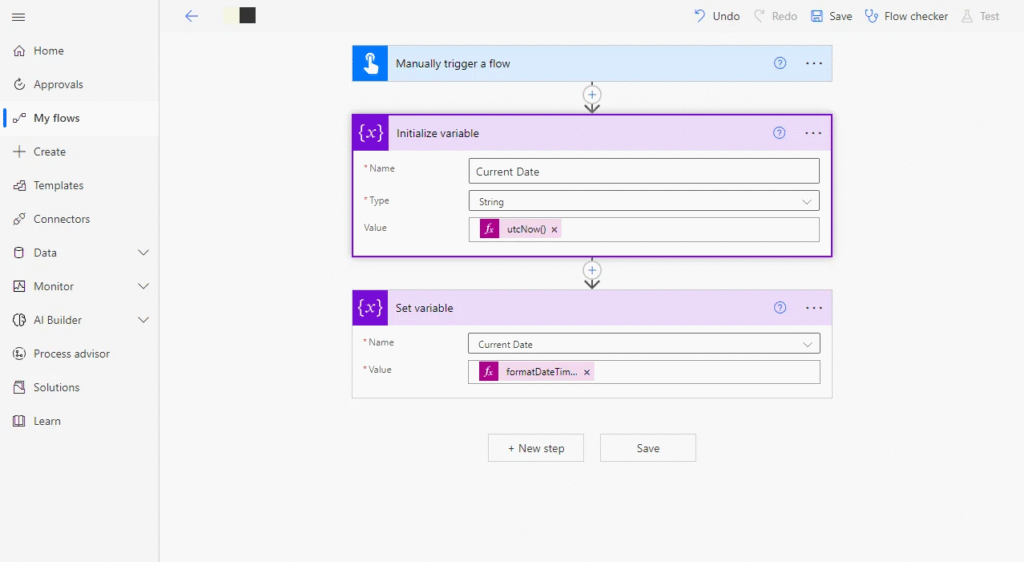
Step 2: Initialize a Variable
Next, you need to store the current date and time in a variable that is automatically added by Power Automate formatDateTime. Start by placing an ‘Initialize variable’ action in your flow, naming the variable ‘currentDate’ with a String type, and using utcNow() for the value.
The expression captures the present UTC date and time into the currentDate variable, which can then be reformatted as needed.
Step 3: Format the Date Using formatDateTime()
To present the date in a readable or required format, we’ll use the formatDateTime() function.
- Add a ‘Set variable’ action.
- Select the currentDate variable, and in the Value field, apply the formatting function using the expression tab.
Here are a few format examples you can use depending on your needs:
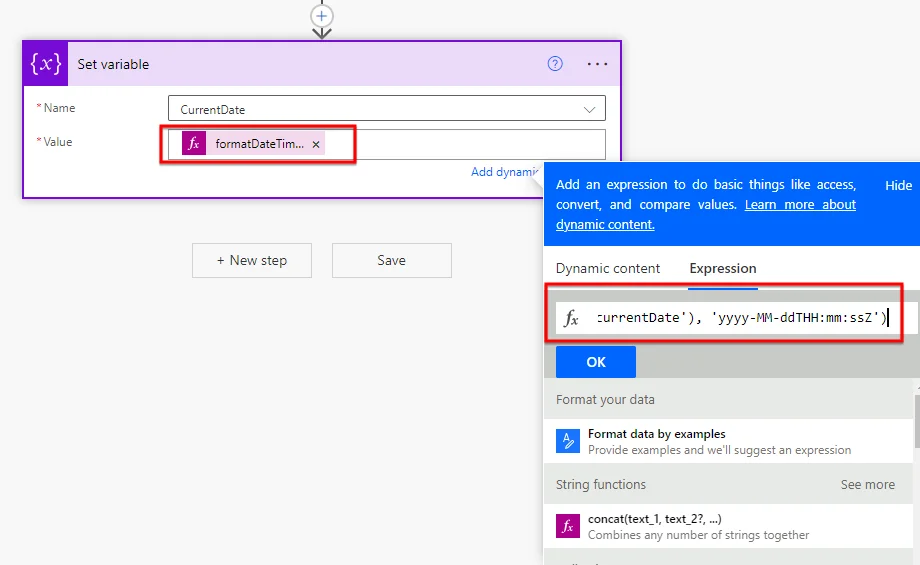
ISO 8601 format:
To convert a variable into ISO 8601 format in Power Automate, apply the formatDateTime function with this expression:
formatDateTime(variables(‘currentDate’), ‘yyyy-MM-ddTHH:mm:ssZ’)
Standard MM/dd/yyyy format:
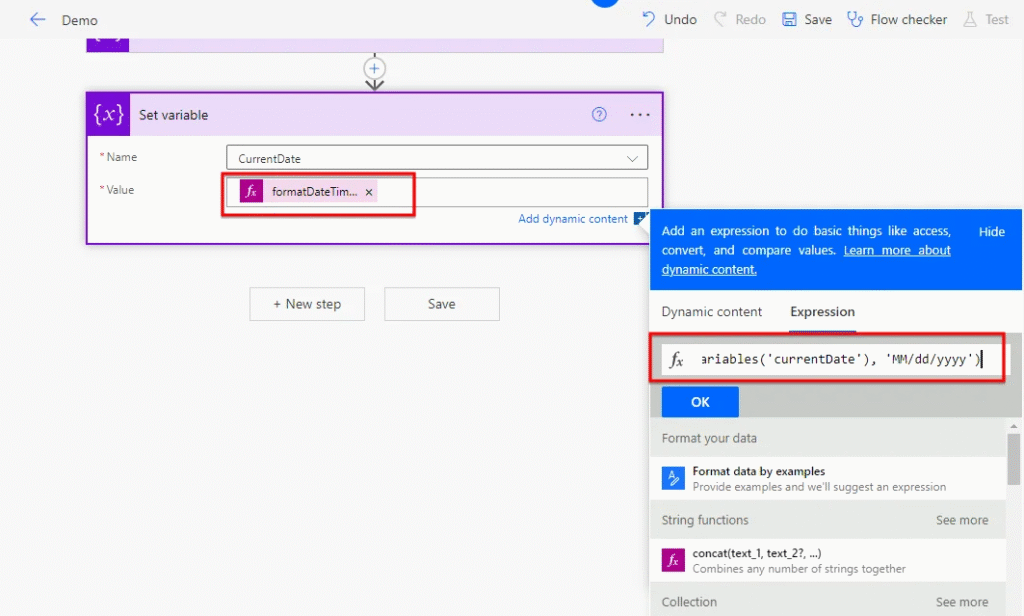
In Power Automate, you can format a date as MM/dd/yyyy by utilizing the formatDateTime expression as follows:
formatDateTime(variables(‘currentDate’), ‘MM/dd/yyyy’)
Date as a numeric string (e.g., for file names or IDs):
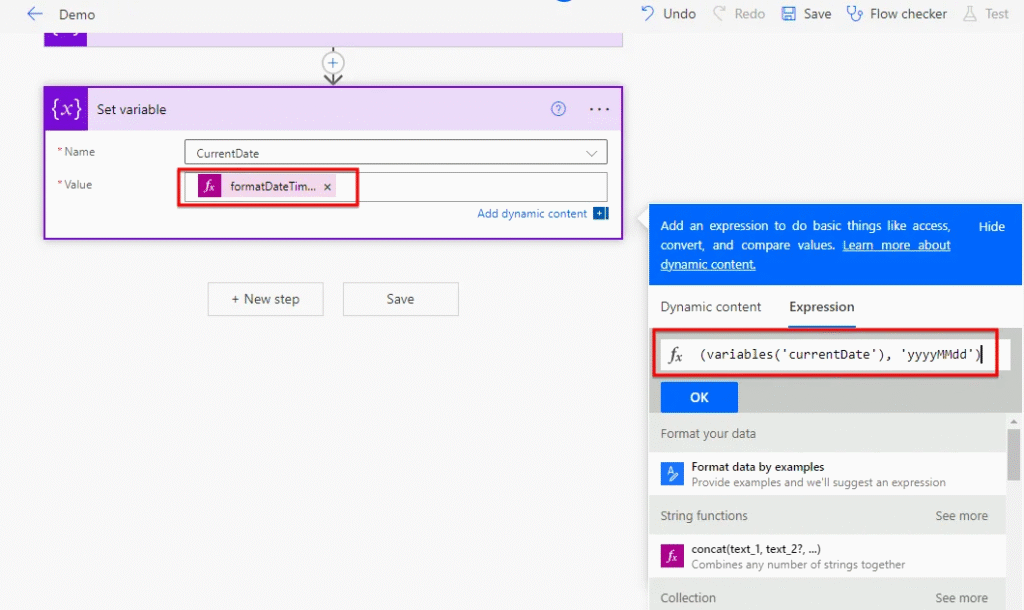
To format a date into a numeric string using the Power Automate formatDateTime function, use the following expression:
formatDateTime(variables(‘currentDate’), ‘yyyyMMdd’)
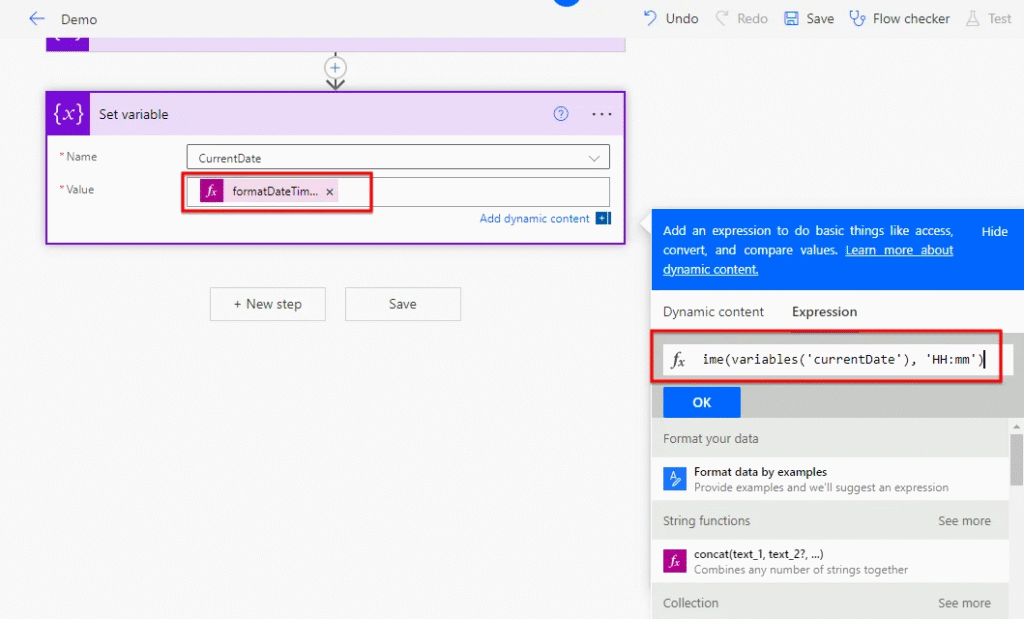
24-hour time format:
To format a time into a 24-hour format using the Power Automate formatDateTime function, use the following expression:
formatDateTime(variables(‘currentDate’), ‘HH:mm’)
12-hour AM/PM format:
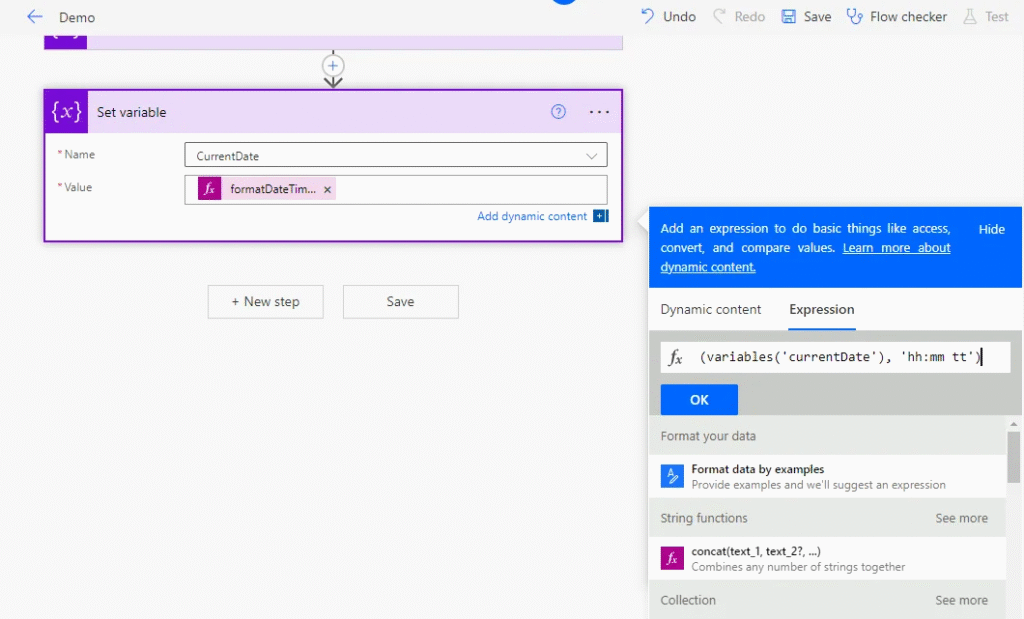
To format a time into a 12-hour AM/PM format using the Power Automate formatDateTime function, use the following expression:
formatDateTime(variables(‘currentDate’), ‘hh:mm tt’)
Step 4: Insert the Formatted Value into Your Workflow
Once formatted, your variable is ready for use throughout the flow. You can now insert currentDate variable into emails, file names, logs, or any other action that accepts a string value. This ensures your output always reflects the date/time in the format you need.
Step 5: Save and Test the Flow
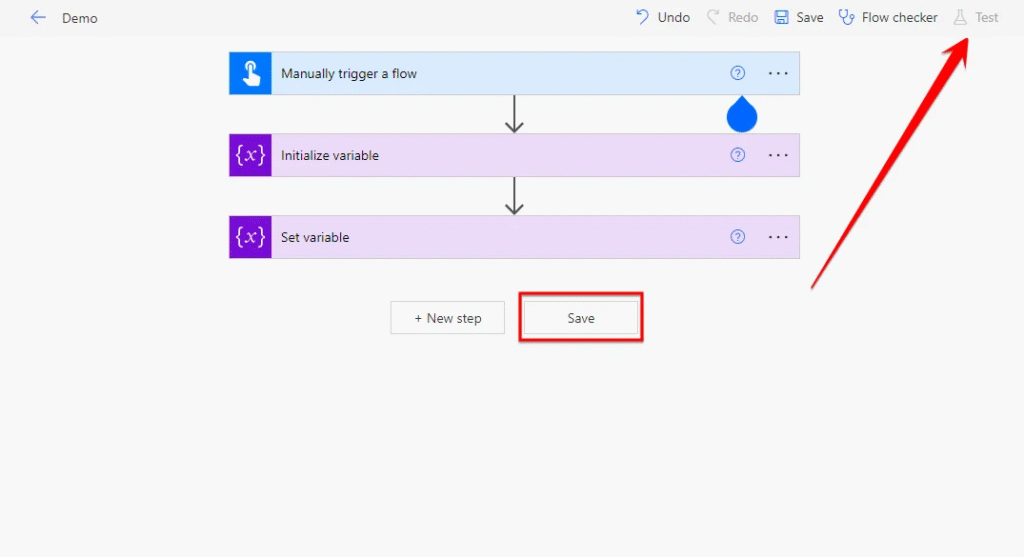
After date and time formatting is set:
- Click Save to store your flow.
- Use the Test button to run it manually and check the output.
If configured correctly, your flow will now show the date and time in the exact format you applied using formatDateTime().
Power Automate formatDateTime Code Examples
Popular Format Codes
| Format | Description | Example Output |
| yyyy-MM-dd | ISO standard date format | 2025-04-18 |
| MM/dd/yyyy | U.S. date format | 04/18/2025 |
| dd-MM-yyyy | European date format | 18-04-2025 |
| yyyyMMddTHHmmss | Compact datetime (good for filenames) | 20250418T093500 |
| dddd, MMMM dd yyyy | Long date format | Friday, April 18 2025 |
Date Format Codes
The table below highlights popular date format strings used in Power Automate formatDateTime function:
| Code | Meaning | Example |
| yyyy | 4-digit year | 2025 |
| yy | 2-digit year | 25 |
| MM | 2-digit month | 4 |
| MMM | Abbreviated month name | Apr |
| MMMM | Full month name | April |
| dd | Day of the month (2 digits) | 18 |
| ddd | Abbreviated day name | Fri |
| dddd | Full day name | Friday |
These codes can be mixed to build formats like dd MMM yyyy (18 Apr 2025) or dddd, dd MMMM yyyy (Friday, 18 April 2025).
Time Format Coes
Formatting time is just as important, especially when dealing with logs or timestamps. Here’s a quick reference:
| Code | Meaning | Example |
| HH | Hour (24-hour format) | 14 |
| hh | Hour (12-hour format) | 2 |
| mm | Minutes | 45 |
| ss | Seconds | 9 |
| tt | AM/PM marker | PM |
These codes can be used in combinations like HH:mm:ss (14:45:09) or hh:mm tt (02:45 PM).
5 Advanced Power Automate formatDateTime Techniques
When it comes to automating workflows, date and time formatting can be much more than a cosmetic feature. With Power Automate’s formatDateTime function, you can build logic-rich, precise automations that adapt to time zones, conditions, and formats — all while keeping your flows neat and efficient.
Let’s dive into five powerful techniques that go beyond the basics and help you truly master formatDateTime.
1. Nesting Functions for Future or Past Dates
You can nest date/time functions like addDays, addHours, etc., inside formatDateTime to calculate and format a future or past date in one go.
Use Case: Schedule a follow-up notification 5 days from now.
Expression: formatDateTime(addDays(utcNow(), 5), ‘yyyy-MM-dd’)
If today’s date is April 18, 2025, the output will be:
Output: 2025-04-23
This is useful for scheduling tasks, setting deadlines, or creating follow-ups dynamically.
2. Conditional Date Formatting Based on Weekends
Use conditional logic with formatDateTime to change the format of a date depending on the day of the week.
Use Case: Show full date on weekends, short format on weekdays.
Expression:
if(or(equals(dayOfWeek(utcNow()), 0), equals(dayOfWeek(utcNow()), 6)),
formatDateTime(utcNow(), ‘dddd, MMMM dd, yyyy’),
formatDateTime(utcNow(), ‘MM/dd/yyyy’))
If it’s Friday, April 18, 2025, a weekday:
Output: 04/18/2025
If it were Sunday, April 20, 2025, a weekend:
Output: Sunday, April 20, 2025
This makes your outputs more readable based on context, especially in user-facing flows.
3. Displaying Local Time Using Time Zone Conversion
Power Automate uses UTC by default, which may not match your local or business time zone. Combine convertTimeZone with formatDateTime to show accurate local times.
Use Case: Display current time in Pacific Standard Time (PST).
Expression: formatDateTime(convertTimeZone(utcNow(), ‘UTC’, ‘Pacific Standard Time’), ‘yyyy-MM-dd HH:mm’)
If UTC is 19:30 on April 18, 2025, the output will adjust for PST (UTC-7):
Output: 2025-04-18 12:30
This is essential when building flows for global users or region-specific tasks.
4. Using Custom Format Specifiers via Variables
Instead of repeating format strings everywhere, you can define a custom pattern in a variable and reuse it.
Step 1 – Initialize variable:
Set variable: formatStyle = ‘MMMM dd, yyyy – hh:mm tt’
Step 2 – Use Expression: formatDateTime(utcNow(), variables(‘formatStyle’))
Output (on April 18, 2025, 15:45 UTC): April 18, 2025 – 03:45 PM
This approach enhances code reusability and keeps your flows clean and manageable.
5. Combining Format Elements for Enhanced Presentation
Use multiple format specifiers to tailor how the date and time appear — with custom separators, AM/PM indicators, or more readable layouts.
Use Case: Show date and time using slashes and 12-hour clock with AM/PM
Expression: formatDateTime(utcNow(), ‘MM/dd/yyyy hh:mm tt’)
Output: 04/18/2025 03:45 PM
Expression to format Date-Time with Dashes and 24-hour style: formatDateTime(utcNow(), ‘yyyy-MM-dd HH:mm:ss’)
Output: 2025-04-18 15:45:00
These customizations are great for dashboards, reports, and end-user notifications where visual clarity matters.
Common Errors with the Power Automate formatDateTime Function
The formatDateTime function in Power Automate is a powerful tool used to convert and format date-time values into readable or standardized formats. While it offers great flexibility, users often encounter errors due to small missteps in syntax, formatting, or data handling. Understanding these common pitfalls can save time, prevent workflow failures, and ensure reliable automations.
1. Invalid Date Format Input
Power Automate expects input in a specific structure, typically ISO 8601 (e.g., 2025-04-18T14:30:00Z). If the incoming date isn’t in this format—especially from manual inputs or non-standard systems—the formatDateTime function may fail or return unexpected results. It’s essential to ensure your input is a valid, parseable date.
2. Incorrect Format Strings
The formatting syntax for formatDateTime is based on .NET’s custom datetime format specifiers. Mistyping these strings or using unsupported patterns (like mm for months instead of MM) can cause errors or incorrect outputs. Always double-check your formatting references when building expressions.
3. Null or Empty Values
Trying to format a null or empty timestamp is a common issue that throws errors in flows. Before using formatDateTime, it’s good practice to validate that the variable or field contains a value. Use condition checks or default values to safeguard against this.
4. Time Zone Confusion
The default timezone for all datetime operations in Power Automate is UTC. If your workflow spans across regions or needs to reflect local times, overlooking time zone conversions can cause significant inaccuracies. Consider using the convertTimeZone function in combination with formatDateTime for precise control.
5. Syntax Errors
One of the most frequent mistakes is incorrect function syntax. Whether it’s misplaced parentheses, wrong quote styles (curly quotes instead of straight ones), or missing commas, even small syntax issues can lead to flow failures. The correct usage is:
formatDateTime(timestamp, ‘yyyy-MM-ddTHH:mm:ssZ’)
Note: Always use straight single quotes (‘) and validate expression structure carefully.
6. Issues with Leap Years and Daylight Saving Time
Edge cases such as February 29 in leap years or changes during Daylight Saving Time (DST) can lead to unexpected behavior. If your automation handles historical data or time-sensitive tasks, it is wise to address such anomalies explicitly.
Conclusion
The Power Automate formatDateTime function is essential for customizing how date and time values appear in your workflows. Whether you’re preparing data for reports, generating filenames, or displaying readable timestamps in emails, this function gives you the flexibility to present date-time values exactly the way you need. Its ability to handle both standard and custom formats makes it a powerful tool for improving the clarity and professionalism of automated outputs.
By mastering formatDateTime, you can streamline your flows, reduce errors, and ensure consistent formatting across your automation processes. Just remember to use valid date inputs, double-check your format strings, and handle null values where necessary. With a little practice, this function becomes a reliable part of building more dynamic and user-friendly Power Automate flows.
Related Sources & References:
https://learn.microsoft.com/en-us/power-automate/date-time-values
https://www.matthewdevaney. com/power-automate-formatdatetime-function-examples/
https://citizendevelopmentacademy. com/blog/power-automate-formatdatetime/
https://blog.enterprisedna.co/power-automate-formatdatetime/
https://imperiumdynamics.com/blog/Power-Automate-Format-DateTime